
 Oodrive Work
 Oodrive Board
 Administration
Have a PDF document signed

The Oodrive Work application allows you to have documents electronically signed by internal and external collaborators.
This will enable you to set up a document validation workflow, speed up internal authorization processes or have agreements signed with external parties.
Send a PDF document for signature
Step 1 : Select the document to be signed
-
Go to one of your teamspaces or My space.
-
Browse through your folders and select the PDF document(s) requiring signature.
-
Click Manage and select Get signature.
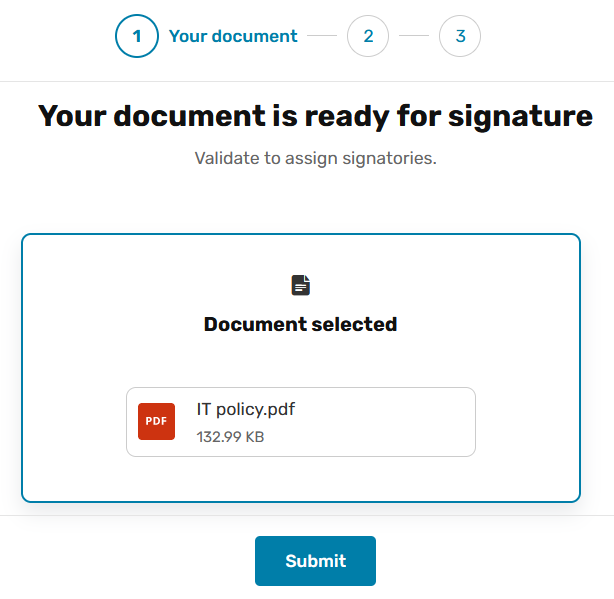
You start the process of requesting a signature.
-
If you have selected several documents for signature, you will be asked if you wish to merge them. Choose an option.
Keep documents separate: each document is signed independently of the others.
Merge documents: the documents you have selected are merged into a single document requiring a single signature.
-
Click Submit to go to the next step and add signatories.
Step 2: Add signatories
-
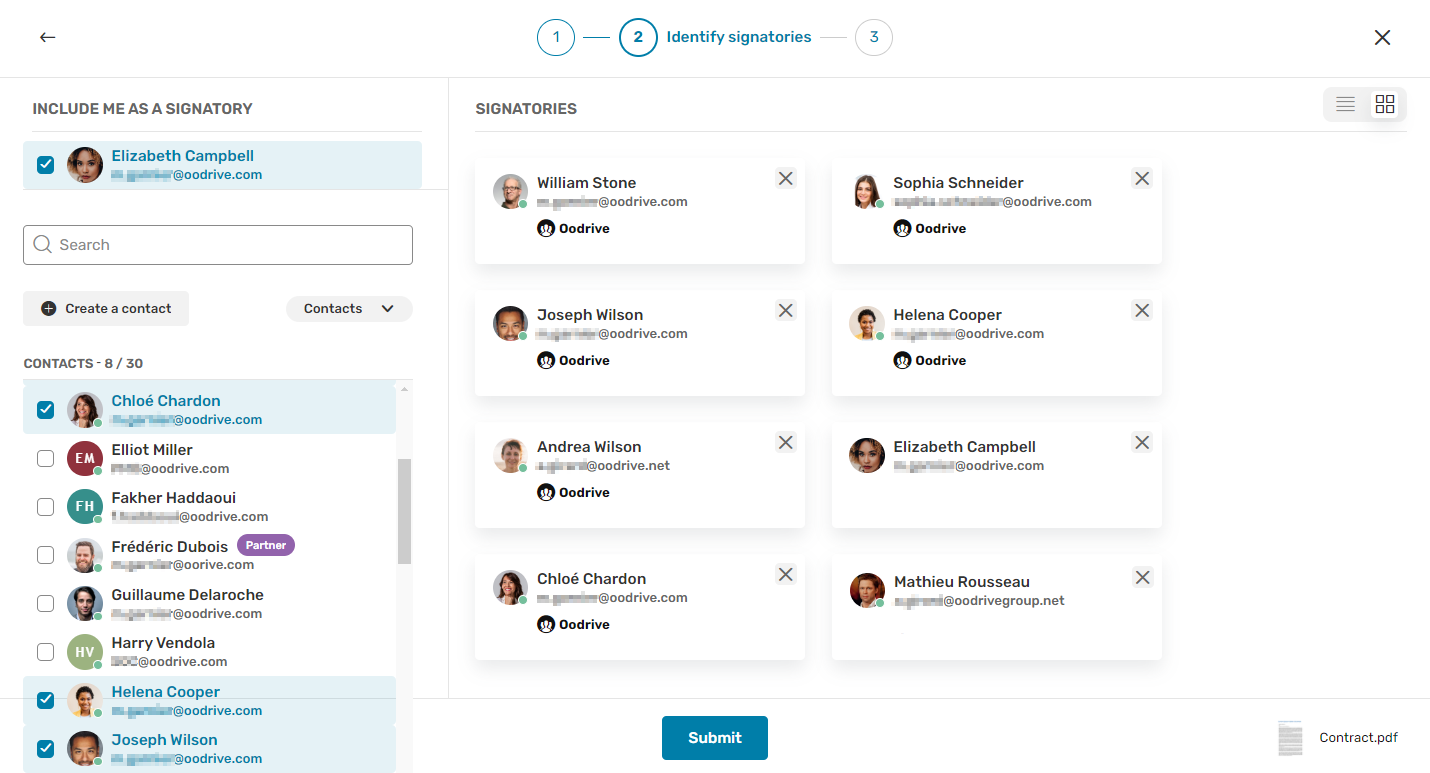
In the panel on the left, select the signatories from your address book.
You can also add yourself as a signatory by checking your name in the Include me as a signatory section.
Tip
Depending on the configuration made by your administrator, you may be able to create a contact on the fly using the Create a contact button. Enter your contact's surname, first name and e-mail address and click Create. The contact in question will be added to your address book and automatically selected as the document's signatory.
-
When you have finished, click Submit to go to the next step.
Step 3: Send the document for signature
Check the summary of your signature request, then click Send requests.
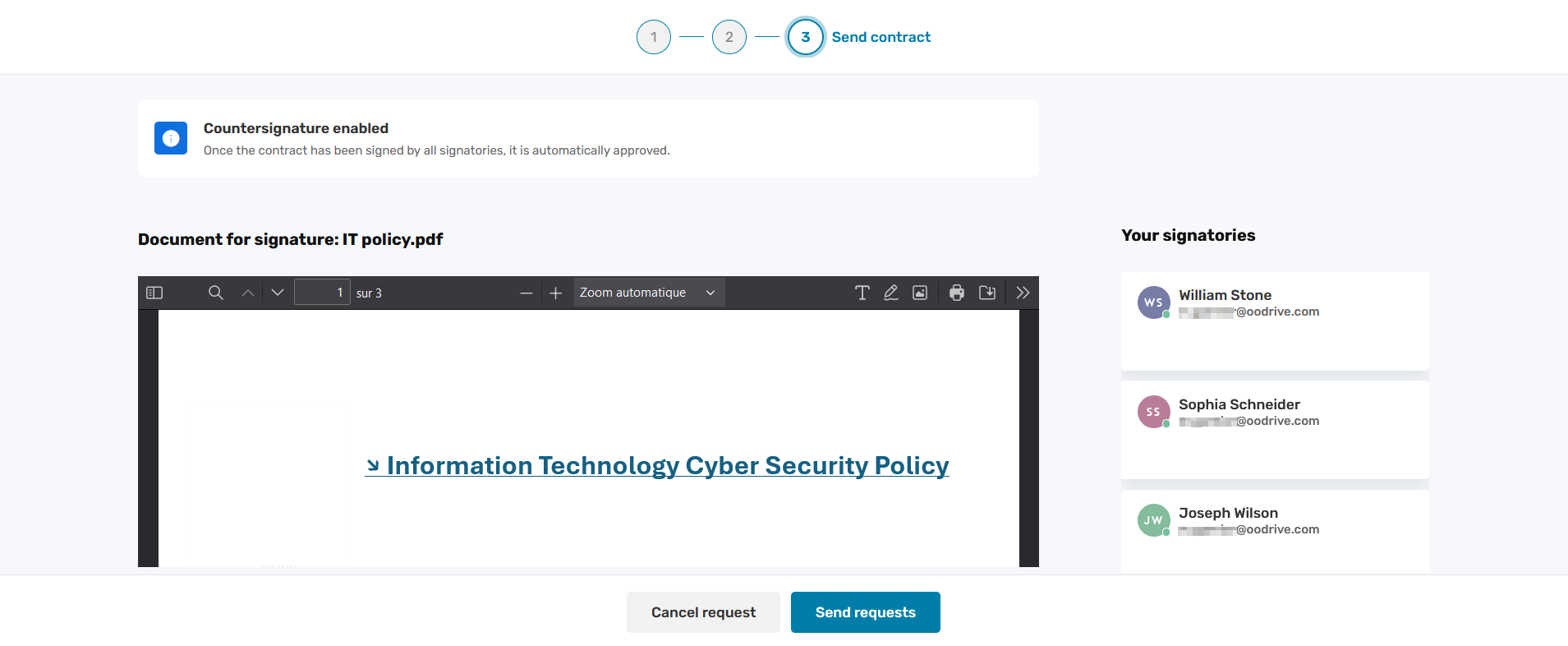
A copy of the original document is created for the signature process:

You can view the progress of the signing process and follow-up with signatories from the information panel, under the Signature tab.
Manage signature requests
You can monitor the progress of your signature requests, cancel them, or follow-up with signatories.
Monitor the signature process
Once your document has been sent to the signatories, a label appears on your document to indicate the status of the signature:

|
Document awaiting sending |

|
Signature in progress |

|
Signature canceled |

|
Signature validated |
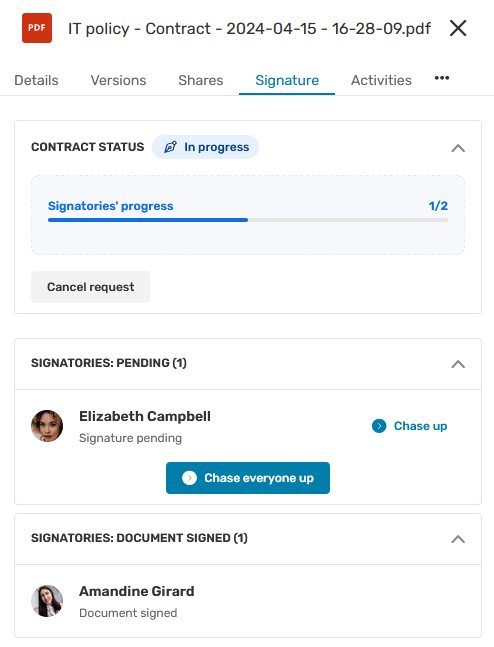
You can also monitor the signing process in real time from the Signature tab in the information panel.
-
Go to one of your teamspaces or My space.
-
Browse through your folders and select the document for which you wish to monitor the signature process.
-
Click on the
 button on the right above your files to open the information panel, then click on the Signature tab.
You access information about the document signature:
Chase up your signatories
You can send a reminder to your signatories at any time.
-
Go to one of your teamspaces or My space.
-
Browse through your folders and select a document with a signature in progress.
-
Click on the
button on the right above your files to open the information panel, then click on the Signature tab. -
In the Signatories: pending section, identify the signatory you want to remind and click on the Chase up button next to their name.
Tip
You can also remind all signatories who have not yet signed by clicking on the Chase everyone up button.
Cancel a signature request
You can cancel a signature request if the need arises.
-
Go to one of your teamspaces or My space.
-
Browse through your folders and select a document with a signature in progress.
-
Click on the
button on the right above your files to open the information panel, then click on the Signature tab. -
In the Contract status section, click Cancel request and confirm.
Your signature request is canceled.
Download the proof file
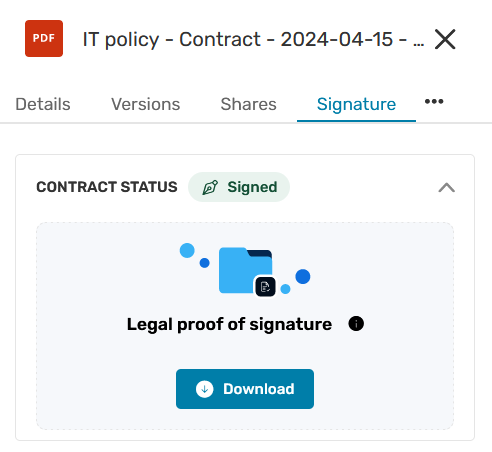
Once the document has been signed and validated, a proof file is available to guarantee the integrity of the process.
Le dossier de preuve comprend différents éléments :
Le document signé au format PDF
Les fichiers de preuves au format JSON et XML
Le fichier de preuves au format PDF, qui est une représentation visuelle de la preuve XML contenue dans le dossier.
To download the proof file:
-
Go to one of your teamspaces or My space.
-
Browse through your folders and select a signed document.
-
Click on the
button on the right above your files to open the information panel, then click on the Signature tab. -
In the Contract status section, click Download.
Resources