
 Oodrive Work
 Oodrive Board
 Administration

Communicate with your colleagues via Oodrive Talk
Please note
The discussion feature and videoconferencing features are is currently not available in a SecNumCloud-qualified Private Cloud environment.
Introduction
The Oodrive Talk module integrated into Work allows you to communicate with your colleagues via the discussion and videoconferencing features. These tools make everyday collaboration easier by allowing you to send real-time messages or start a video call from the application.
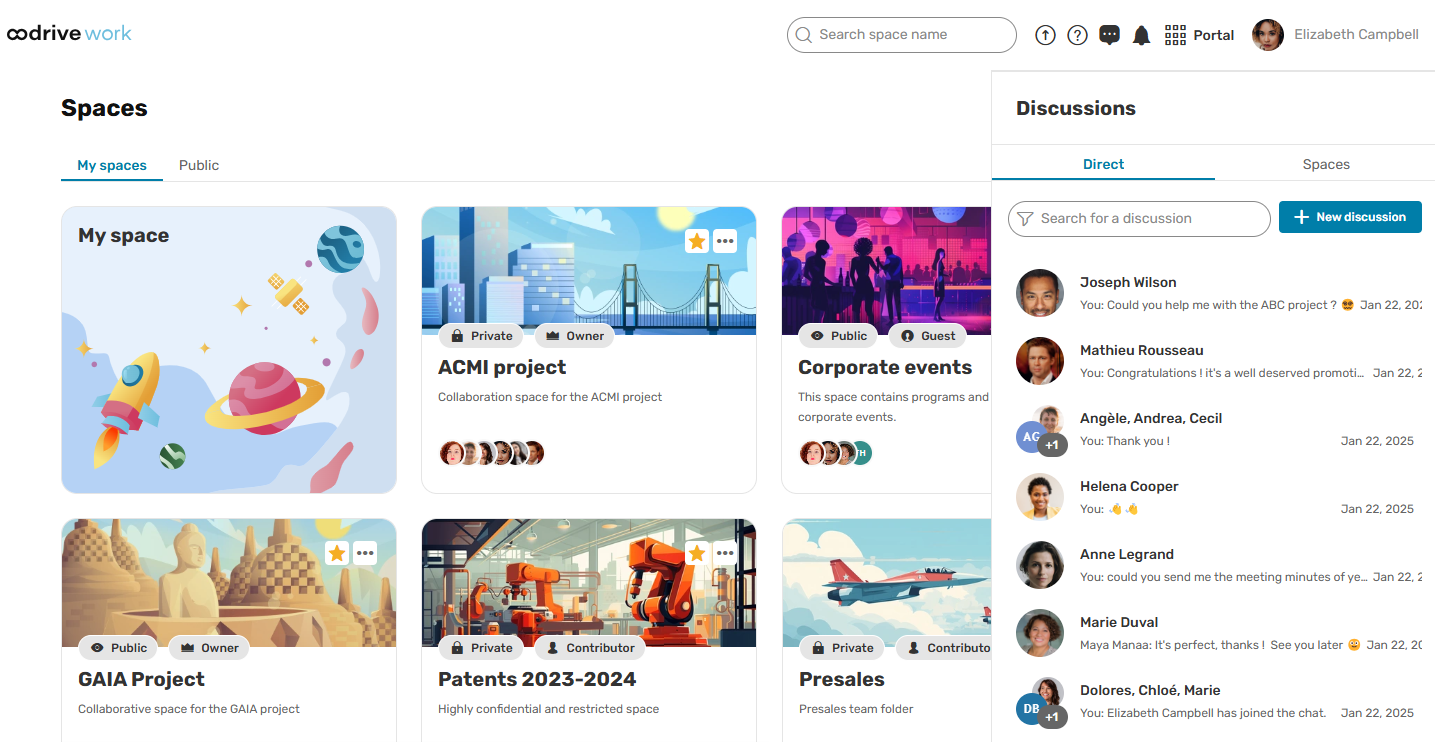
Discussion types
There are two types of discussion:
-
Direct conversations allow you to chat with one or more colleagues of your choice.
-
Team discussions gather all members of a teamspace.
In each type of discussion, a video call button is also available. It allows you to start a videoconference directly from the discussion window.
Access discussions
You can access your conversations from the home page by clicking the Discussions icon  in the upper-right corner of the screen.
Your discussions open in a new tab.
-
To access direct conversations: go to the Direct tab.
-
To access teamspace discussions: go to the Spaces tab.
If you want to find a specific conversation, enter the name of the colleague or teamspace in the search bar.
Discussion notifications
If you have authorized your browser to send you notifications from Oodrive, you will be notified when you receive a message or when a videoconference has started. If you have not, you can authorize them later in your browser's notification settings.
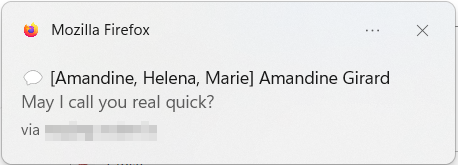
To enable browser notifications:
|
Browser |
Procedure |
|---|---|
|
Chrome |
Go to: Customize and control Google Chrome > Settings > Privacy and security > Site settings. Under Permissions, click Notifications and go to the Customized behaviour section. Next to Allowed to send notifications, click Add, then enter "https://sharing.oodrive.com" and click Add again. |
|
Edge |
Go to: Settings and more > Settings > Privacy, search, and services > Site permissions > All permissions > Notifications. Under Customized behaviors > Allowed to send notifications click Add site, enter "https://sharing.oodrive.com" and click Add. |
|
Firefox |
Click the menu button Click Notifications and find the line “https://sharing.oodrive.com”, then select Allow from the dropdown menu. |
 and go to
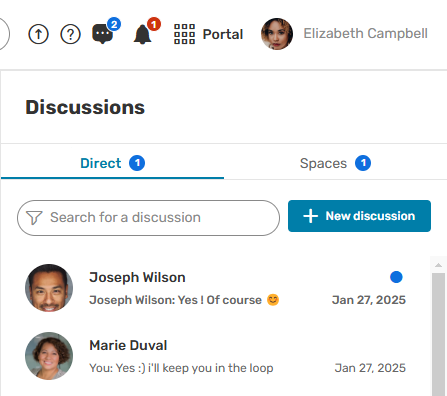
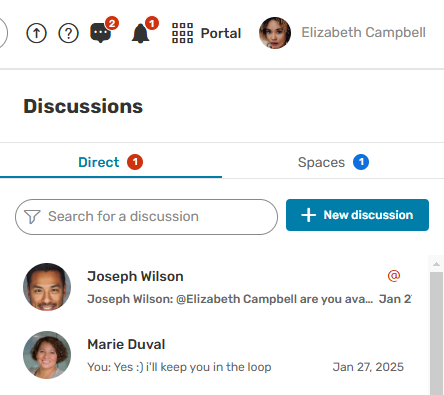
 A blue dot also appears on the Chat icon to let you know you have unread messages. When you have been tagged in a conversation, the dot becomes red
  and an @ symbol appears on the conversation tile:
|
|
|
|
New message |
New message you're tagged in |
Please note
An email notification is sent every day at 6 p.m. to inform you of any unread messages.
Start a direct conversation
You can start a direct conversation with one or more colleagues in your workspace from the Oodrive Work home page.
Please note
A Partner-type collaborator can participate in direct discussions to which they have been added, but they cannot create new discussions.
-
On the home page, click the Discussions icon
. Your discussions open in a new tab:
-
To start a new conversation, click + New discussion.
-
In the new discussion menu, select one or more colleagues in your address book.
-
When you have finished, click Submit.
A new chat room is created and you can start chatting.
Please note
If a discussion with the same members already exists, you will be redirected to this discussion instead.
Send a message
-
Start a new discussion or open an existing one.
-
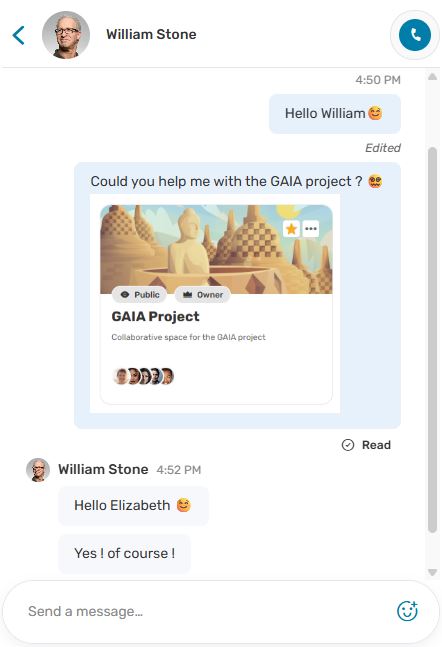
In the open discussion, enter your message.
Insert emoticons: click the
 icon and select the emoticon of your choice.
Paste an image from the clipboard: copy an image of your choice and paste it into the text field. Your image must be less than 5MB in size and in PNG, JPEG, GIF, or WEBP format.
Tag a colleague: enter @ and select a colleague in the list. You can also tag all members by selecting @Everyone.
-
When your message is ready, click
 or press the Enter key.
Tip
The status displayed below your messages allows you to track their state: Sending, Sent, Failed to send, or Read. If a message failed to send, click Retry to send the message.
In a group conversation, hover over the Read status to see the number and names of participants who have viewed the message.
Edit a message
You can edit a message you have already sent.
-
Hover over the message and click the Edit icon
 .
. -
Edit your message, then confirm by clicking the Edit icon
 .
.
To discard your changes, click the Cancel icon  then on Delete.
Messages that have been edited are labeled as such.
Delete a message
If necessary, you can delete one of your sent messages.
-
Hover over the message and click the Delete icon
 .
. -
Click Delete again to confirm.
React to a message
-
Hover over the message and click the React icon
 .
. -
In the pop-up window, select an emoticon.
Reply to a message
-
Hover over the message and click the Reply icon
 .
. -
Enter your reply and click
or press the Enter key.
Manage members of a direct discussion
If you are a member of a group discussion, you can add or delete members at any time.
View members in a direct discussion
You can view the members in a group discussion by clicking on the Members icon  along the top of the discussion panel.
|
|
|
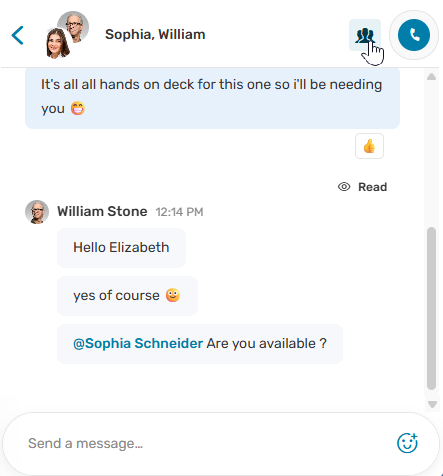
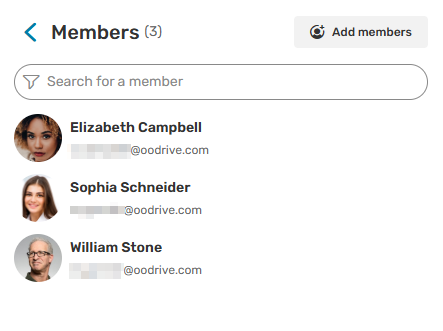
If you want to find a participant in particular, enter the collaborator's name in the search bar.
Add members
-
On the home page, click the Discussions icon
. Your discussions open in a new tab.
-
Go to the group discussion for which you want to manage members.
-
Click the Members icon
along the top of the discussion panel -
Click Add members.
-
Using the address book, select the collaborators you want to add to your group discussion.
-
When you have finished, click Add.
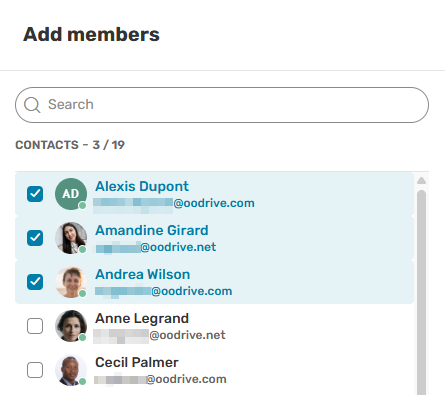
Added collaborators can now take part in the discussion and view the message history.
Delete members
-
On the home page, click the Discussions icon
. Your discussions open in a new tab.
-
Go to the group discussion for which you want to manage members.
-
Click the Members icon
along the top of the discussion panel -
Enter the name of the member you want to remove in the search bar to find it easily.
-
Hover over the member you want to remove and click the X next to their name.
-
Click Submit.
Please note
A deleted member can still view the conversation history up until their removal from the discussion.
Start a videoconference from a direct discussion
Please note
The videoconferencing feature is currently unavailable, but will be deployed soon in the Public Cloud environment. For more information, please contact your sales representative.
You can start a videoconference with one or more colleagues in your workspace from a direct discussion.
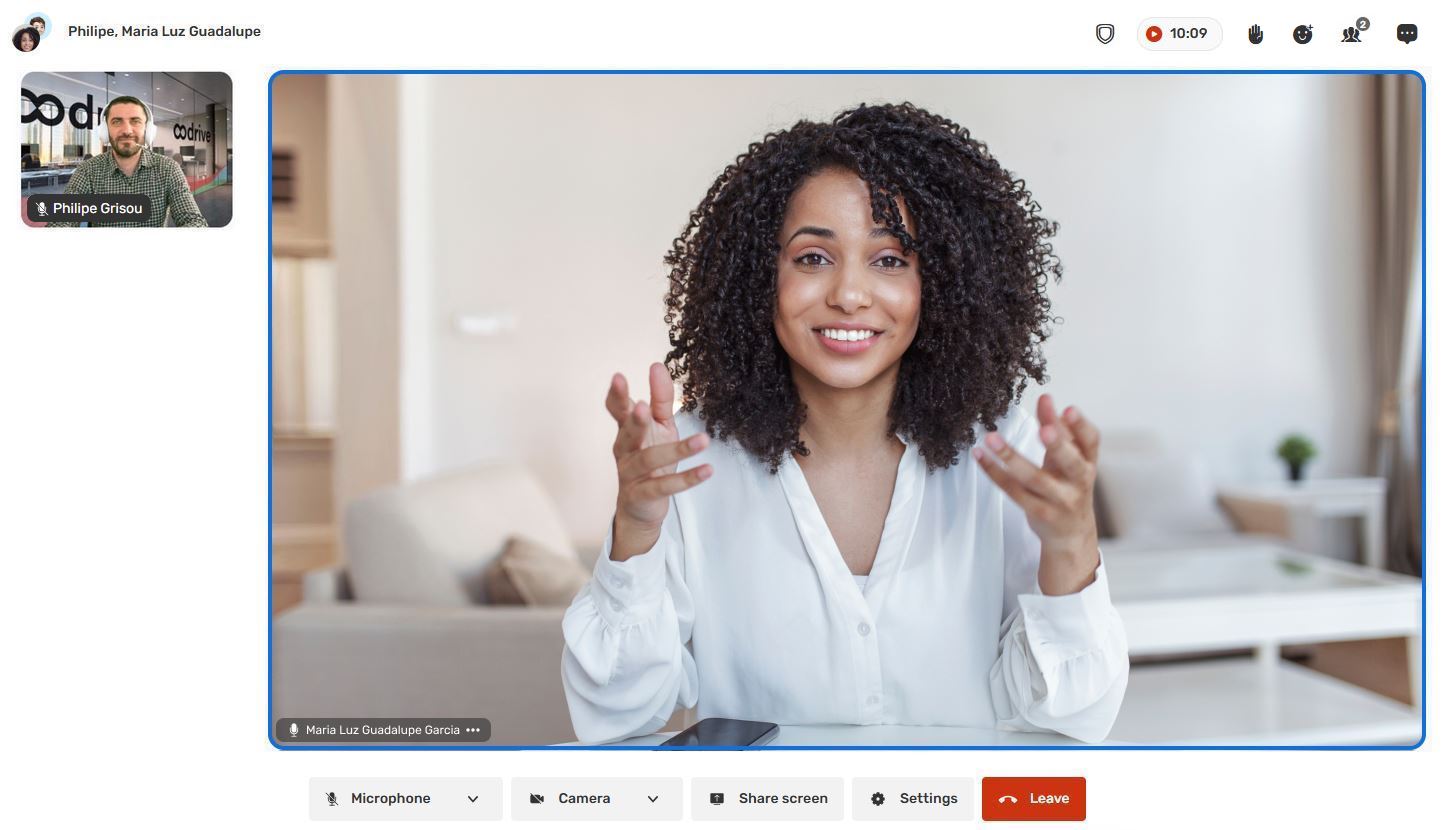
Start a video call
-
On the home page, click the Discussions icon
. Your discussions open in a new tab.
-
Start a new discussion or open an existing one.
-
In the open discussion, click the Start a Call icon
 .
. -
Your video call will open in a new tab:
-
If prompted, allow the browser to access your device's microphone and camera.
-
By default, you join the videoconference with your microphone enabled and your camera disabled.
-
-
Members of direct discussions are notified that the call has started and can join you.
If no one in the discussion picks up, the call will automatically end after one minute. You can choose to hang up or or call back.
Please note
A Partner-type collaborator can start a video call from any teamspace or direct discussion they have been added to.
Join an ongoing call
When someone starts a call in a direct discussion, you are notified by a ringtone and a notification. You may join the ongoing call by doing either of the following:
-
If you see the call notification: click Accept to join the call.
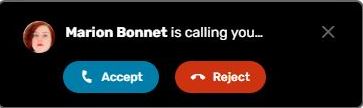
Click Reject to decline the call. The caller will be notified that you have declined the call.
-
If you missed the call notification, you can join the call while it is in progress.
To do so, open the discussion with an ongoing call and click on the Join the call button
.
Options available during a call
During a video call, you can perform the following actions:
|
Videoconferencing options |
|
|---|---|
|
|
Audio
|
|
|
Video
|
|
|
Share screen
|
|
|
Discussion
|
|
|
Participants
|
|
|
Invite to join
|
|
|
Reactions
|
|
|
Raise hand
|
|
|
Mute the microphone
|
|
|
Remove from call
|
|
|
Settings
|
|
|
Leave
|
|
|
Call back
|












Member status during a call
During a videoconference, you can follow the responses of guests in real time, including those who have not yet joined the call, using the Participants button  .
.
The status of guests who have not yet joined the call is displayed in the Not connected section.
|
Status |
Description |
|---|---|
| Calling... | The call notification and ring tone are active at the recipient's end. |
| Rejected | The recipient rejected the call. |
| No reply |
The recipient did not answer the call or is not logged into their Oodrive account. |
| Left | The recipient joined the call and then left it. |
Share your screen during a call
-
During the call, click Share screen.
-
Choose what you want to share:
-
Entire screen: to show everything displayed on your desktop.
-
Application window: to show only one program window (PowerPoint, browser, etc.).
-
Browser tab: useful for sharing only a single web page.
You can also share audio when sharing a tab or screen.
-
-
Click Share.
The shared screen is now visible to all participants.
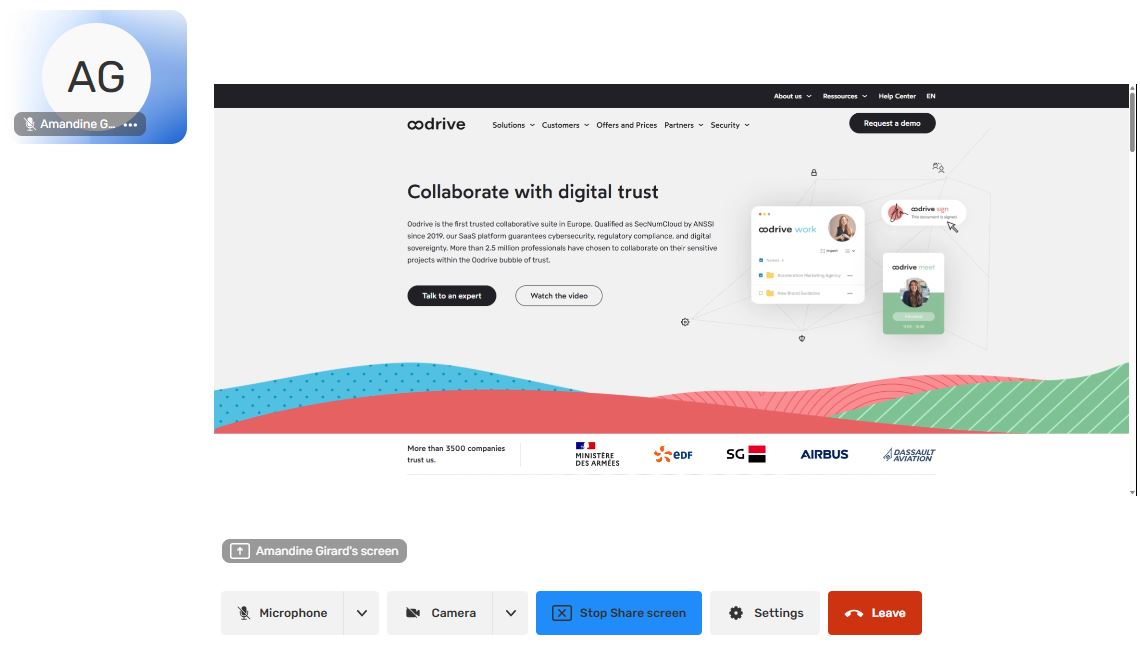
-
Depending on the type of screen share, a banner will appear, allowing you to manage your screen sharing options. These may vary depending on the type of screen share
-
When sharing a tab: A fixed banner along the top of each tab in your browser allows you to:
Stop sharing,
Modify the shared tab,
Return to the videoconference,
Return to the shared tab.

-
When sharing a window or the entire screen: a floating banner allows you to stop sharing. You can hide it if you wish.

-
-
You can stop screen sharing at any time by clicking Stop Sharing from the videoconference tab.
Please note
Multiple participants can share their screens at the same time during a videoconference. Each participant can then freely choose which screen they want to focus on.
Participate in a team discussion
Oodrive Work's discussion and videoconferencing features are also available within teamspaces. This allows you to send messages in real time or start a video call with your team members.
For more information on team discussions, please refer to Participate in the team discussion.
Resources