
 Oodrive Work
 Oddrive Meet
 Administration
Managing access to mobile and desktop applications

Mobile applications
By default, users can log into your company workspace on their smartphone or tablet from oodrive mobile applications (including, BoardNox, oodrive_meeting, Oodrive Mobile and oodrive_share). However, if you would rather prevent the use of mobile applications, you can change this option.
-
In the Access Management module, click on the Mobile and desktop apps section.
-
In the Mobile applications section, select No to disable access to mobile applications.
-
Along the bottom of the page, click Save.
The next time a user tries to log in to your workspace on a mobile application, they will receive an accessed refused message:
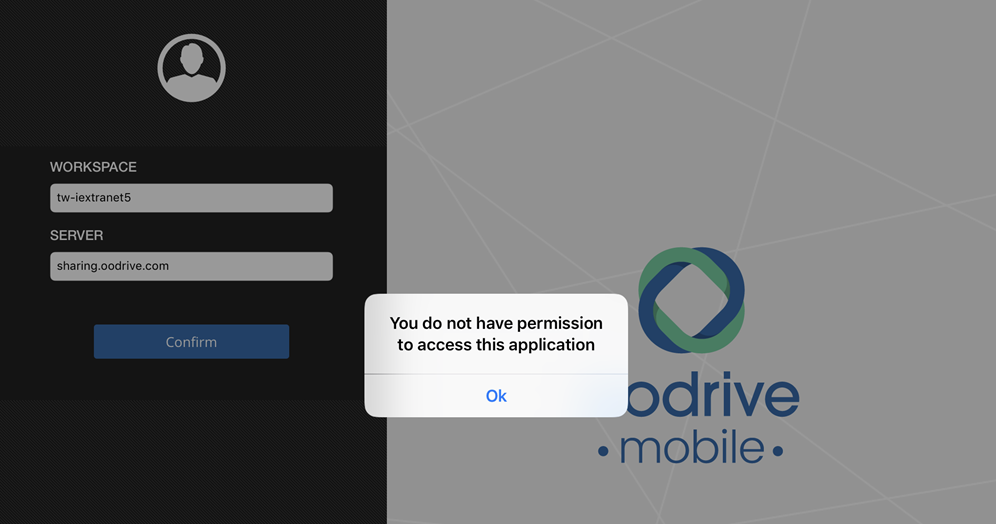
You can re-enable access to mobile applications at any time.
Note
Disabling access to mobile applications will not, however, prevent access to the workspace via web browser on mobile devices.
To prohibit platform access via mobile device, it is recommended that you enable IP address filtering for all mobile devices from which users are likely to log in. You can also include a paragraph on the subject in your terms of service.
Desktop applications
Several desktop applications are available on your workspace to help users share and manage files more easily (EasyTransfer, WebSynchro, Plugin Outlook). However, if you would rather prevent the use of desktop applications, you can disable these applications.
-
In the Access Management module, click on the Mobile and desktop apps section.
-
In the Desktop applications section, select No to disable access to desktop applications.
-
Along the bottom of the page, click Save.
Users will no longer be able to access your workspace using desktop applications.
You can re-enable access to desktop applications at any time.
Resources