 Help Center








 Go to Oodrive
Getting started with Oodrive Sign

Log in to your workspace
There are three ways to log in to your workspace:
with your Sign login credentials
with your Oodrive login credentials
with your company login credentials (if your company has signed up to this service)
Log in with your Sign login credentials.
Logging in for the first time
Retrieve the credentials emailed to you when your account was created.
Click the link Click here to activate your account and choose your password.
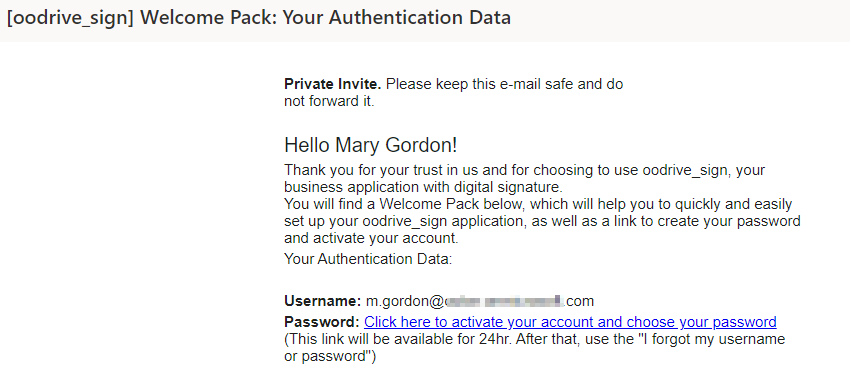
You will be redirected to a browser page asking you to set a password and confirm before clicking Validate.
Once on the login page, enter your username and password, then click Connection.
Tip
We recommend that you add the Oodrive Sign login page to your browser bookmarks to make it easier to find next time you log in.
Log out at any time by clicking on your name in the upper-right corner of the page, then Logout.
Subsequent logins
Retrieve the credentials emailed to you when your account was created.
In your web browser, go to the login page for your signature platform:
Enter your username, then your password.
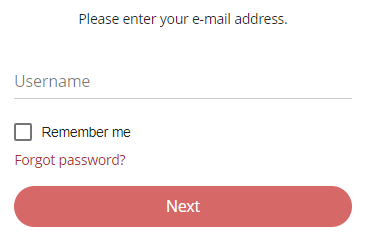
If you want the browser to remember your login credentials, tick the Remember me box.
If you have forgotten your password, click Forgot password?
Click Connection.
Log out at any time by clicking on your name in the upper-right corner of the page, then click Logout.
Log in with your Oodrive login credentials
In your web browser, go to the login page for your signature platform:
Click Connect with Oodrive.
If you have already logged in to the Oodrive platform, connection to Oodrive Sign will be automatic. If not, you will need to enter your login credentials.
Enter the name of your workspace, then click Ok.
Enter the username and password you use to log in to your Oodrive applications, then click Log in.
Log out at any time by clicking on your name in the upper-right corner of the page, then click Logout.
Log in with your company login credentials
If your company has signed up to this service, you can log in to your Oodrive Sign license using your company login credentials.
Use the personalized link you have received to access the dedicated login page for your company.
Tip
We recommend that you add this personalized login page to your browser bookmarks to make it easier to find next time you log in.
Log in using your company login credentials.
If you have already logged in to other solutions using your company login credentials, connection to Oodrive Sign will be automatic.
Log out at any time by clicking on your name in the upper-right corner of the page, then Logout.
Overview of Oodrive Sign
Overview of your license
|
Your Oodrive Sign license is the independent environment assigned to your company on the signature platform. Every company using the Oodrive Sign solution is assigned one or more licenses, each of which covers the contractual activity for one legal entity. You can quickly access all sections of your license in the navigation panel that appears when you click your profile:
In the navigation panel, you can access the main sections of your license:
|


Navigate between several permissions groups
Your Administrator may have chosen to divide your organization’s contractual activity into partitioned units known as “permissions groups” for greater confidentiality. Each user will only have access to the permissions groups assigned by the Administrator.
If several permissions groups have been assigned to you, you can navigate between them to access the contract templates, the signatory directory and the contractual activity for each permissions group.
-
Click the
 icon to go to the home page.
 -
Click your profile in the upper-right corner of the screen.
-
In the side menu, click Choose permissions group.
-
Use the drop-down list to select the permissions group you wish to enter.
-
Click Approve.
You access the home page for the selected permissions group. New contracts, campaigns and signatories that you will create will be associated with this permissions group.
Navigate between several licenses
If you are affiliated to several legal entities, you can navigate between them by switching from one license to another.
-
Click your profile in the upper-right corner of the screen.
-
In the navigation panel, click the Your account drop-down list and select the license you want to go to.
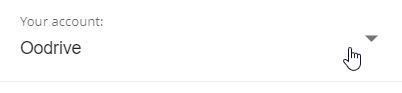
This redirects you to the dashboard for the selected license.
Edit your user profile
You can edit your personal information or preferences at any time from your user profile.
-
Click your profile in the upper-right corner of the screen.
-
In the navigation pane, select Your user profile.
-
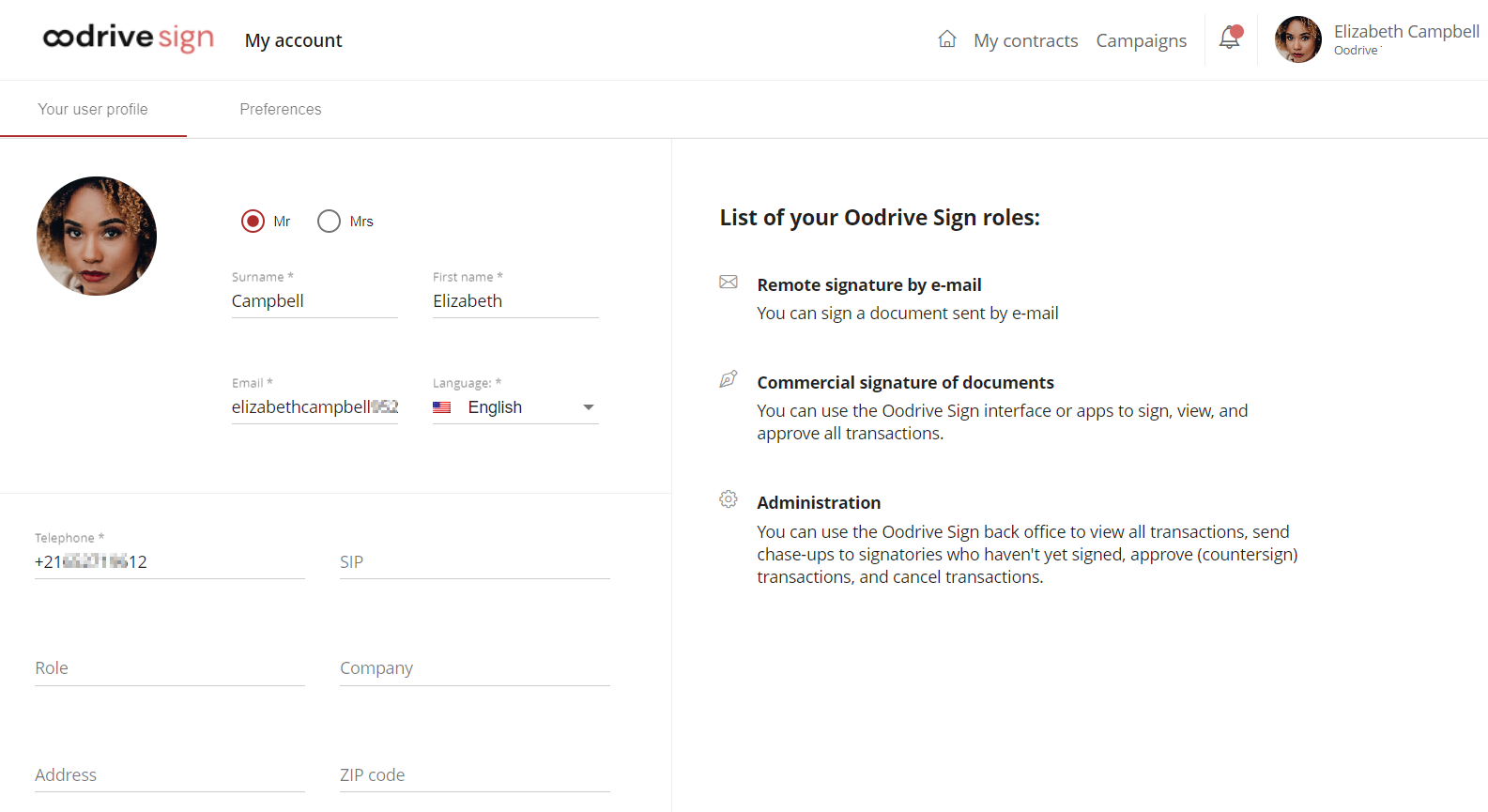
You can then see the details of your user account:
-
Edit your personal information from the Your user profile tab.
-
If you want to make changes to your account settings, go to the Preferences tab. There, you can perform operations such as managing your preferences for email notifications and conversation tracking.
Manage your notifications
-
Click the bell icon next to your profile in the upper-right corner of the screen:
 .
. -
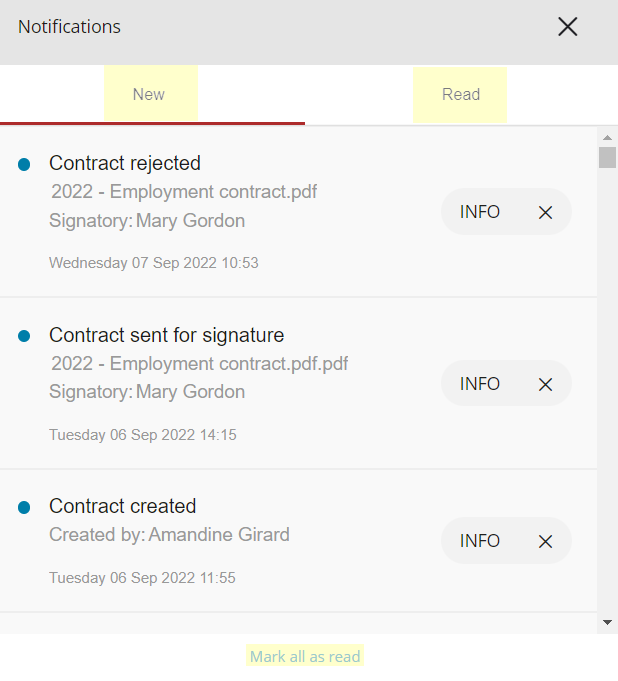
You will see your new notifications.
-
Click INFO to access the details of the transaction that generated a particular notification.
-
To mark a notification as read and remove it from the list of new notifications, click the small cross to its right. It will then move to the Read tab.
You can also click Mark all as read to hide all new notifications in a single click.
Overview of signature modes
Oodrive Sign offers different electronic signature modes with or without identity verification. This section introduces the various signature modes you can select for your signatories while preparing a transaction.
Please note that the available signature modes depend on the services to which your organization has subscribed, as well as on the configuration of your license and the contract templates used.
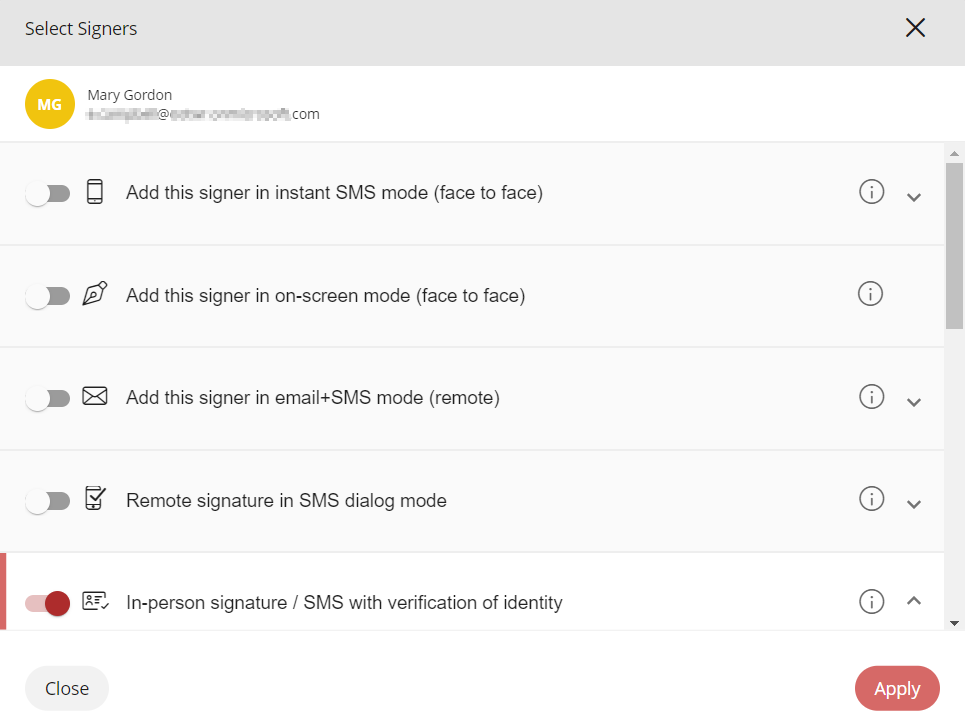
Face-to-face signature
Face-to-face signature is used for face-to-face transactions where the signatory is sharing the same screen as you and can therefore read through the contract on your screen before signing.
Two face-to-face signature modes are available:
-
On-screen mode: In this mode, the signatory signs directly on the screen of your tablet or smartphone. This procedure allows you to obtain a legally binding and conclusive electronic signature for your contracts, with or without a network connection, from the mobile application.
-
Instant SMS mode: In this mode, the signatory signs by means of an OTP code received by SMS text. This signature mode is preferable if you are face to face with your customer and have access to your computer and an internet connection.
Remote signature
Remote signature gives signatories access to the contract via an email or SMS text notification so that they can check and sign it at a time of their choice. It is particularly useful in situations where you are not able to meet face to face, or when a signatory is traveling.
Several remote signature modes are available:
-
Remote approval: In this mode, the signatory receives an email containing a link that lets them check and then approve the contract. Because of the lack of identity verification, this signature mode has little legal validity, but it can be useful in cases such as having documents approved internally.
-
Email+SMS mode: In this mode, the signatory receives an email containing a link that lets them check and then sign the contract via a code received by SMS.
-
Remote signature in SMS dialog mode: In this mode, the signatory receives an SMS containing a link that lets them check the contract. To sign it, the signatory must reply to a second SMS containing a code, repeating the same code in their reply.
-
Remote signature with verification of identity: In this advanced signature mode, the signatory receives an email containing a link that lets them check the contract and then sign it via a code received by SMS, after having verified their identity.
Two levels of identity verification are available:
-
AES 2 - Verification of an original identity document
The signatory must make a video recording of their identity document to confirm its authenticity.
-
AES 3 - Verification of an original identity document and the presence of the signature
The signatory must make a video recording of their identity document to confirm its authenticity, then record their face to provide proof of life.
-
-
Qualified remote signature with dongle: In this signature mode, a signatory with a certificate on USB key can make a qualified signature.
Ressources