 Help Center








 Go to Oodrive
Getting started with Oodrive Sign

Compatibility
Browsers
-
Firefox: any recent version
-
Chrome: any recent version
-
Safari: any recent version
-
Microsoft Edge: any recent version
Mobile applications
-
iOS: version 9.2 or higher
-
Android: version 8.0 or higher
Windows applications
-
Apps compatible with Windows 10 or higher
Log in to your workspace
There are three ways to log in to your workspace:
with your Sign login credentials
with your Oodrive login credentials
with your company login credentials (if your company has signed up to this service)
Log in with your Sign login credentials.
Logging in for the first time
Retrieve the credentials emailed to you when your account was created.
Click the link Click here to activate your account and choose your password.
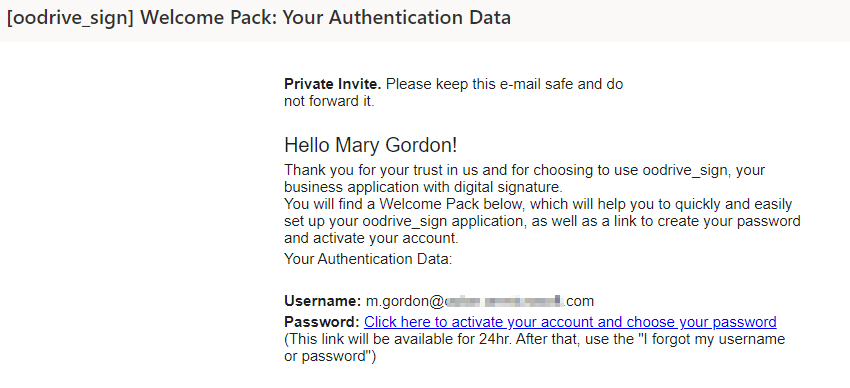
You will be redirected to a browser page asking you to set a password and confirm before clicking Validate.
Once on the login page, enter your username and password, then click Connection.
Tip
We recommend that you add the Oodrive Sign login page to your browser bookmarks to make it easier to find next time you log in.
Log out at any time by clicking on your name in the upper-right corner of the page, then Logout.
Subsequent logins
Retrieve the credentials emailed to you when your account was created.
In your web browser, go to the login page for your signature platform:
Enter your username, then your password.
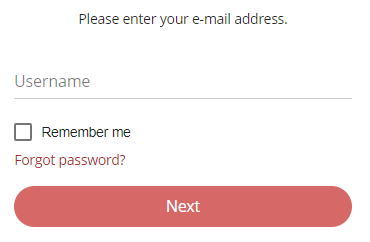
If you want the browser to remember your login credentials, tick the Remember me box.
If you have forgotten your password, click Forgot password?
Click Connection.
Log out at any time by clicking on your name in the upper-right corner of the page, then click Logout.
Log in with your Oodrive login credentials
In your web browser, go to the login page for your signature platform:
Click Connect with Oodrive.
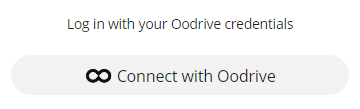
If you have already logged in to the Oodrive platform, connection to Oodrive Sign will be automatic. If not, you will need to enter your login credentials.
Enter the name of your workspace, then click Ok.
Enter the username and password you use to log in to your Oodrive applications, then click Log in.
Log out at any time by clicking on your name in the upper-right corner of the page, then click Logout.
Log in with your company login credentials
If your company has signed up to this service, you can log in to your Oodrive Sign license using your company login credentials.
Use the personalized link you have received to access the dedicated login page for your company.
Tip
We recommend that you add this personalized login page to your browser bookmarks to make it easier to find next time you log in.
Log in using your company login credentials.
If you have already logged in to other solutions using your company login credentials, connection to Oodrive Sign will be automatic.
Log out at any time by clicking on your name in the upper-right corner of the page, then Logout.
Overview of your license
|
Your Oodrive Sign license is the independent environment assigned to your company on the signature platform. Every company using the Oodrive Sign solution is assigned one or more licenses, each of which covers the contractual activity for one legal entity. You can quickly access all sections of your license in the navigation panel that appears when you click your profile:
You can perform administration activities from the Settings section of your license. From this section, you can manage the following items:
|


Navigate between several licenses
If you are affiliated to several legal entities, you can navigate between them by switching from one license to another.
-
Click your profile in the upper-right corner of the screen.
-
In the navigation panel, click the Your account drop-down list and select the license you want to go to.
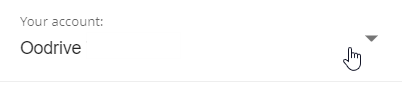
This redirects you to the dashboard for the selected license.
Ressources