
 Oodrive Work
 Oodrive Board
 Administration
Getting started with Oodrive Board

Oodrive Board (formerly Oodrive Meet) is a tool for digitalizing governance meetings that allows you to plan and conduct your sensitive meetings online in a secure and sovereign environment.
As the meeting organizer, you have full control over the entire meeting planning and conducting process. The following table lists actions you can take to organize and conduct a digital meeting in Oodrive Board.
| Before the meeting | During the meeting | After the meeting |
|---|---|---|
|
|
|
Log in to your workspace
using your Oodrive login credentials
using your company login credentials
Log in with your Oodrive login credentials
-
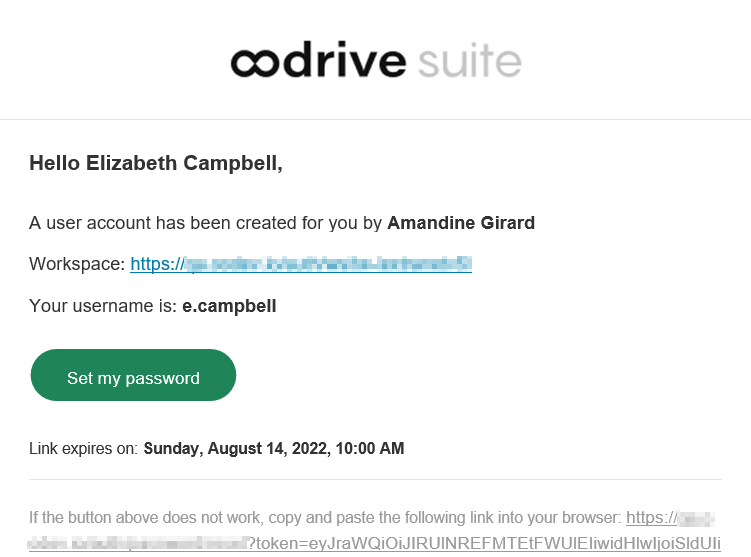
Retrieve the username emailed to you when your account was created and click Set my password.
-
You will be redirected to a browser page asking you to set a password and confirm it before clicking Validate.
-
Click Log in to access the login page.
Please note
If the Oodrive login field is not displayed, click Log in using your login credentials to access it.
-
Enter your username and click Next.
-
Enter the password you have just specified, then click Log in.
Careful
After 5 failed login attempts, a security code will automatically be sent via email. This code will be required in addition to your password.
If you have forgotten your password, click Forgot your password?
If two-factor authentication has already been configured on your workspace, you will also be asked to enter the code received on your mobile device.
-
Next, you will access the Oodrive Suite portal, where you will find all the applications and configuration modules to which you have access.
To return to the portal at any time, click on  in the upper-right corner of the page, then select Portal.
Please note
As a security measure, you will be automatically logged out of your session after 30 minutes of inactivity
Log out at any time by clicking on your name in the upper-right corner of the page, then on Logout.
Log in with your company login credentials
-
Click the Log in using SSO button.
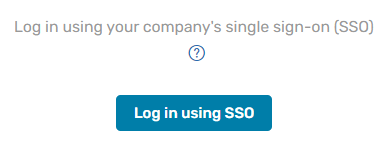
If the button is not available, click Log in using your company's single sign-on (SSO)
-
Enter your company login credentials and click Log in.
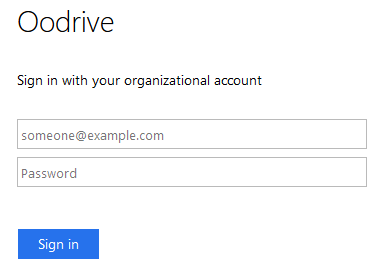
If you have forgotten the password associated with your company username, please contact your company’s IT administrator.
If two-factor authentication has already been configured on your workspace, you will also be asked to enter the code received on your mobile device.
-
Next, you will access the Oodrive Suite portal where you will find all the applications and configuration modules to which you have access.
To return to the portal at any time, click on in the upper-right corner of the page, then select Portal.
Please note
As a security measure, you will be automatically logged out of your session after 30 minutes of inactivity
Log out at any time by clicking on your name in the upper-right corner of the page, then on Logout.
View your meetings
The Meetings section includes all the meetings you organize and are invited to.
You can change the display of your meeting according to your preferences. You can switch between the List and Calendar display at any moment.
To modify your meeting display mode:
-
Access your meeting application Oodrive Board.
-
In the Meetings section, click the
 icon to select the List display or the
  icon to select the Calendar display.
Below is an example of the List display:
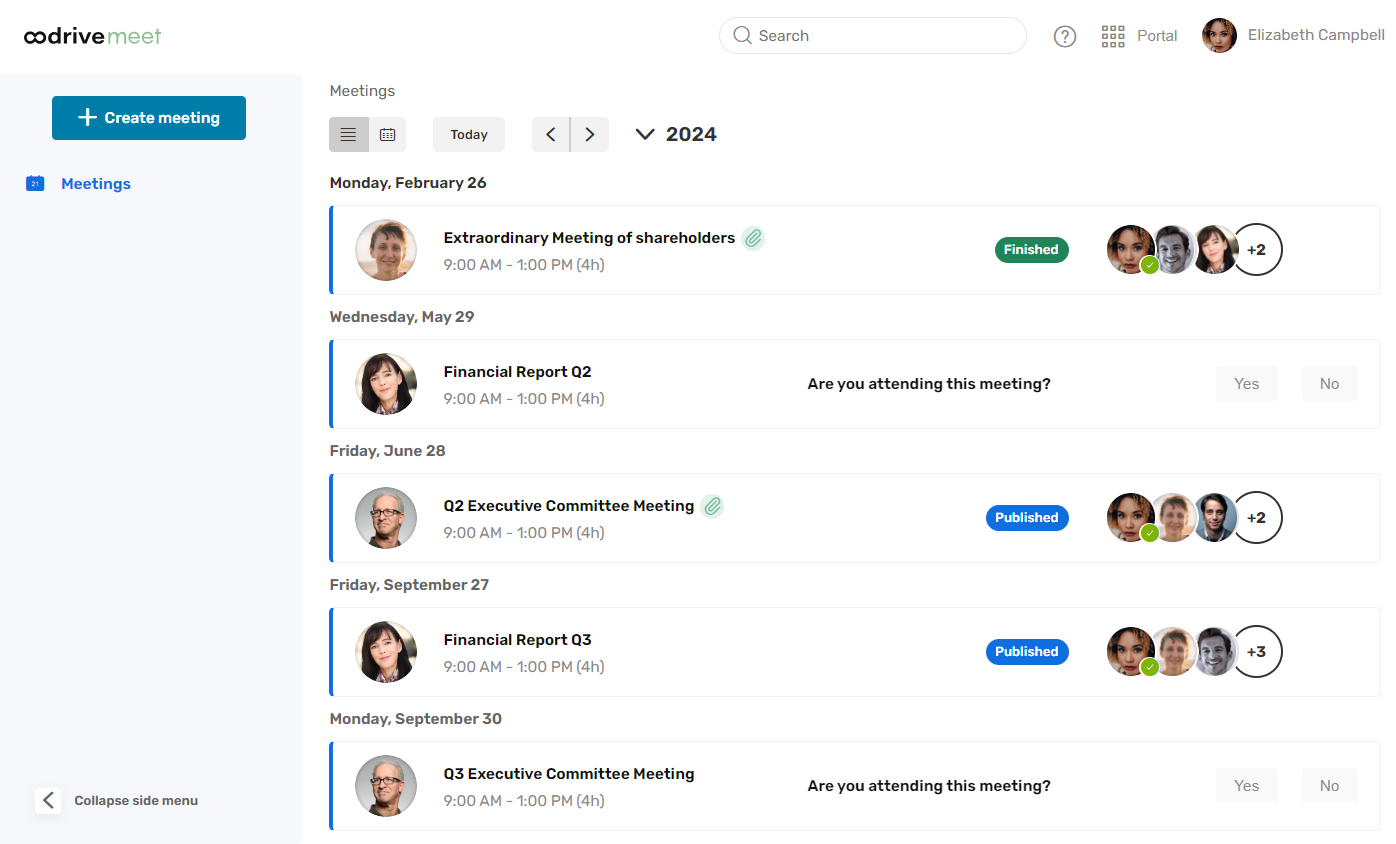
You can now browse all of your meetings according to your display preferences.
Tip
To distinguish between meetings in which you are the organizer and meetings in which you are just a participant, you can view the organizer's profile picture that appears on the left side of each meeting tile.
Search for a meeting or document
Quickly find a meeting or document through keyword search. Research is done on all meeting content in your calendar, including:
-
the title and description of the meeting
-
the title and content of the agenda items
-
the title and content of documents attached to meetings
Please note
Search on document content is not available in SecNumCloud-qualified Private Cloud environments.
-
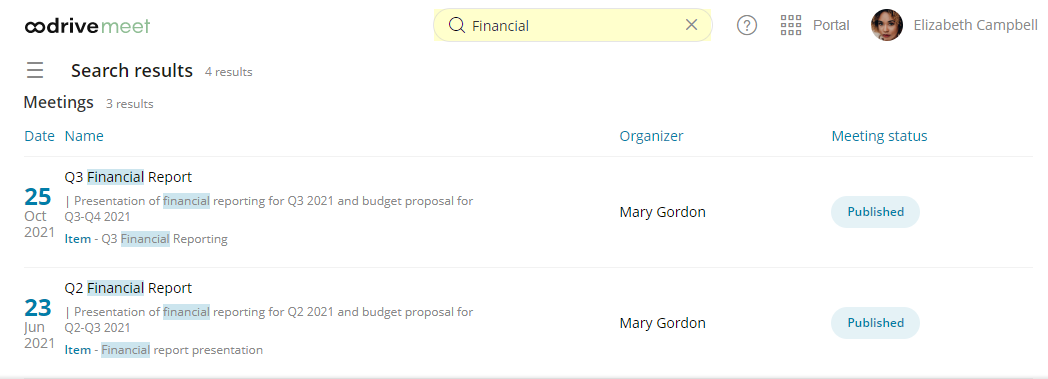
Click the search bar in the upper-right corner of the application.
-
Enter words or key phrases appearing in your meeting invitations, then press the Enter key.
-
Access the meeting or document matching your search by clicking on it.
Resources