 Help Center








 Go to Oodrive
Getting started with Oodrive Authenticator

In addition to your password, your organization may have chosen to implement passcode authentication as an extra layer of protection against unauthorized access.
If so, you will need to use a one-time security code generated by an authentication application in order to log in to your Oodrive account.
This guide will walk you through your first authentication to Oodrive services via the Oodrive Authenticator app.
Download and install Oodrive Authenticator
If you do not yet have the Oodrive Authenticator app, you must first install it on the mobile phone or tablet that you will use for authentication.
-
From your mobile device, go to the Play Store or the App Store.
-
Install the Oodrive Authenticator app on your mobile device.
-
Open the app and agree to its terms of use.
This will take you to the main screen of the Oodrive Authenticator app.
Log in to your workspace
-
On your computer, go to the login page of your Oodrive workspace.
-
Log in using your Oodrive credentials or your company credentials.
-
A QR code then appears on the screen, enabling you to add your Oodrive account to your authentication app.
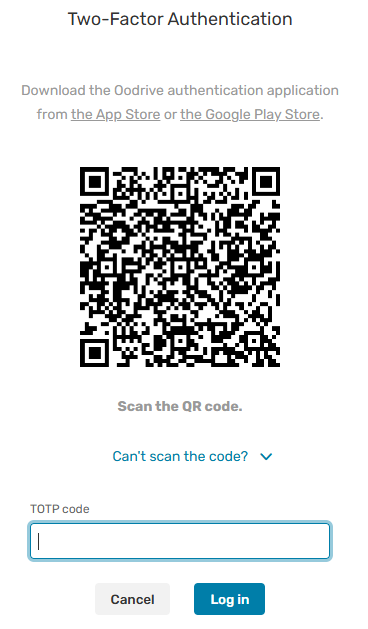
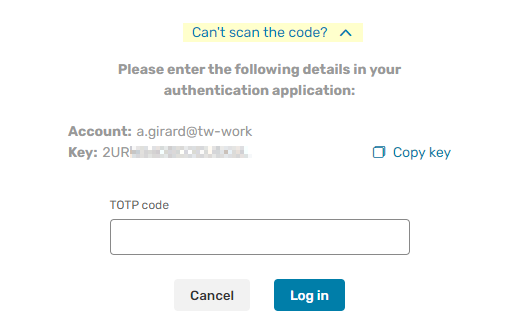
If you want to add your account manually, you can click Can’t scan the code? to display configuration information.
-
Go back to your Oodrive Authenticator app to register your Oodrive account.
Add your Oodrive account to Oodrive Authenticator
You can add your Oodrive account to Oodrive Authenticator by scanning the QR code on the login page or by manually entering the account name and the secret key associated with it.
Add your Oodrive account with the QR code
-
In your Oodrive Authenticator app, tap + New code.
-
If prompted, allow the app to access the camera.
-
Scan the QR code that appears on the Oodrive login page.
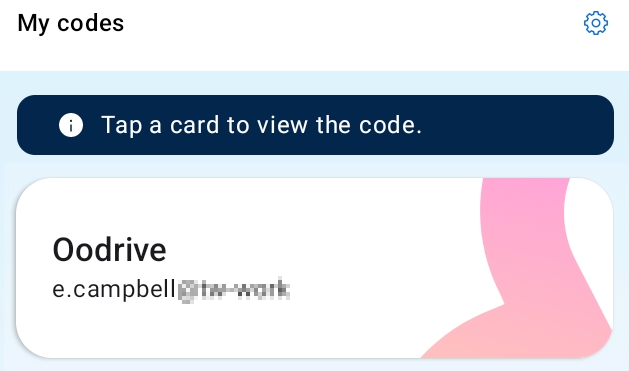
Your Oodrive account is automatically added to Oodrive Authenticator.
Manually add your Oodrive account
If you are unable to scan the QR code, you can also add your Oodrive account manually.
To view the information needed for manual configuration, click Can’t scan the code? on the login page for your workspace.
-
In your Oodrive Authenticator mobile app, tap + New code then Add a code manually.
-
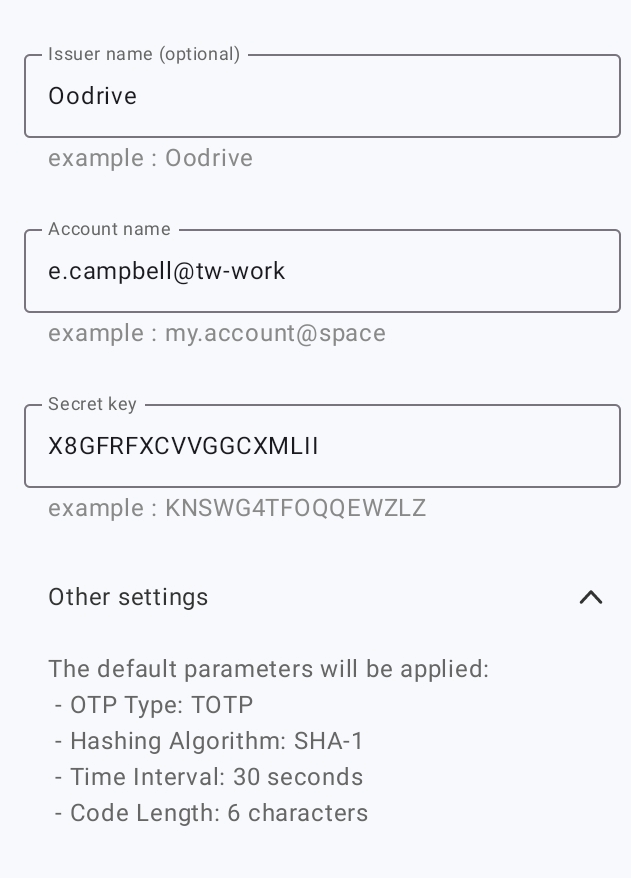
In the Add a code menu, enter the following information found on the login page:
Issuer name: This optional field is pre-filled with “Oodrive”, but you are free to rename it.
Account name: This name will be displayed on the back of the card for the service, usually in the format “username@workspace”. You may rename it as you wish.
Secret key: Carefully enter the key provided by the service, making sure not to make any typing errors.
-
Once you have entered this information, tap Add. Your account is added to Oodrive Authenticator.
Generate a one-time code and log in
Once the initial configuration is complete, you will be able to log in to your workspace by entering the one-time code generated by Oodrive Authenticator.
-
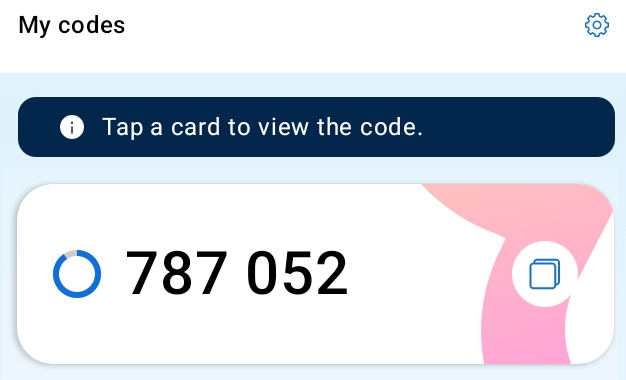
Tap the card showing your Oodrive account to obtain a one-time login code. This code is valid for 30 seconds.
-
Enter this code in the TOTP Code field on the login page of your workspace, then click Log in.
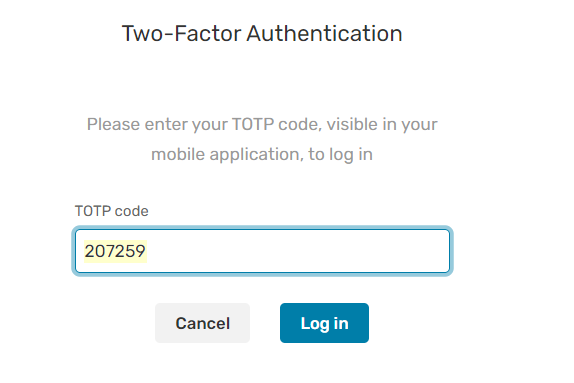
You are logged in to your workspace.
Ressources